
Official single-player, community co-op
The Steam Demo has no listed official co-op feature. AleDev11's unofficial mod adds a shared haystack and Steam friend invitations. Use one mod's instructions from start to finish: the manual setup below is for AleDev11, not a separate launcher or maintenance fork.
Both the official Demo listing (external site) and the full-game listing show single-player. A multiplayer tag or community download does not change that official status. We have not installed this mod or tested a co-op session.
Choose the same version before changing files
AleDev11's mod documentation (external site) specifies Windows 64-bit, Demo V26 or newer, matching mod versions on every computer, and launch through Steam. The author's Nexus page (external site) shows version 0.19.5, updated September 30, 2026, when checked October 27. The V26+ requirement is an author statement, not our compatibility test of every later Demo build.
- Compare each player's Demo build and exact mod version. Do not mix packages from different forks or launchers.
- Close the game. Keep a separate copy of the original
override.cfgand your saves before editing. - Agree who will host. The author says only the host saves the shared world; clients do not save a separate copy.
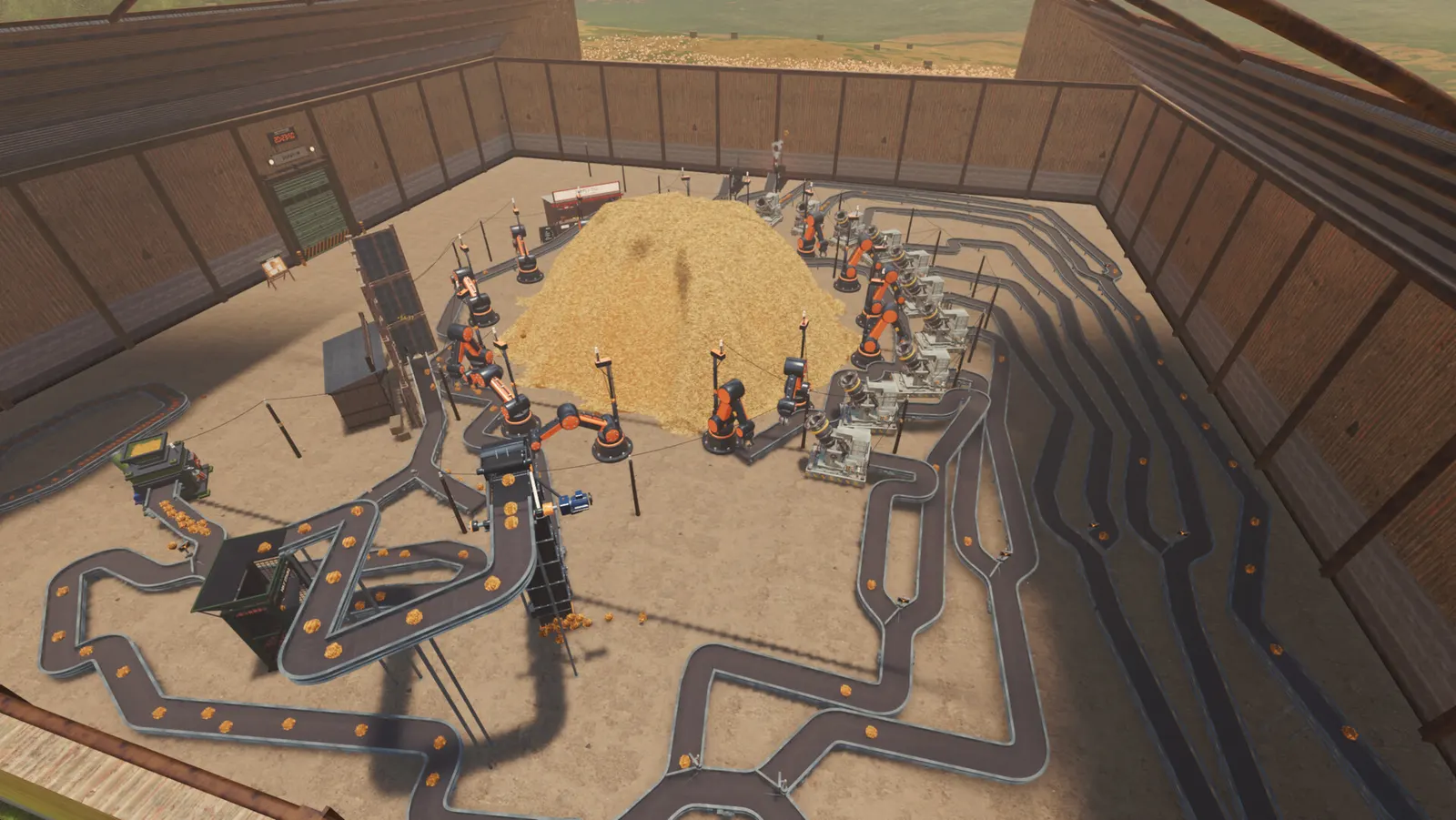
Manual installation: folder, then configuration
- Get AleDev11's release ZIP from the author's page and extract it. These steps do not require a third-party launcher.
- In Steam, right-click Find The Needle Demo, choose Manage > Browse local files, and locate
FindTheNeedle.exe. - Copy the release's
modsfolder beside that executable. - Open
override.cfgin that same folder. Add the configuration below. If an[autoload]section already exists, add only the MPMod line inside it; keep other entries intact. - Launch the Demo from Steam. Look for MULTIPLAYER in the main menu.
[autoload]MPMod="*mods/multiplayer/mp.gd"
The author says game updates replace override.cfg. If that happens, inspect the current file before restoring this entry; do not overwrite new game configuration with an old whole-file copy.
Host and invite through Steam
- The host opens MULTIPLAYER, selects CREATE GAME, then INVITE FRIENDS.
- Friends accept the Steam invitation with the same mod version installed.
- The host uses the game's normal New Game or Load controls to start the world.
The author's normal connection route uses Steam relay and needs no port forwarding. Money is shared, purchased tools are per player, machines run on the host, and the online leaderboard is disabled while the mod is loaded. Plan the session around the host's save, not an assumed independent client save.
Match the symptom to the next check
- No MULTIPLAYER menu: check that the folder and MPMod entry are beside the correct Demo executable, especially after a game update.
- Steam unavailable or invitations fail: launch through Steam and compare the mod version shown on each player's panel. The author distinguishes these from world-sync problems.
- Worlds look different: the author documents F8 for resynchronization and F2 for the multiplayer panel. Hay carried on a shovel or fork is a documented visibility limitation.
- The game crashes: record the Demo and mod versions and follow the author's issue-report instructions. If the original unmodified configuration also crashes, use the base-game crash checks.
These are author-documented checks, not a promise that every connection or crash can be repaired. The documentation does not establish a supported maximum player count or cross-platform co-op.
Return to the original configuration
Close the Demo, remove the MPMod line you added, and remove only this mod's added files. The author describes removing its mods folder; if that folder also contains other mods, preserve those unrelated files. Keep pre-existing autoload entries. Compare with your saved original configuration, then launch from Steam.
This removes the documented loading entry. It does not promise to undo progress already saved by a modded host. For related checks, see PC and input support and conveyor troubleshooting.
Pre-release information: the full game may differ from these Demo sources.